
A report turns what is in the project into a document somebody can be sent — a PDF or a spreadsheet, laid out, with the project's name on it.
This topic includes:
Run a report
- Open Reports and click Create report.
- Choose what the report is about — issues, RFIs, submittals, photos, assets, cost.
- Set the filters: date range, status, location, assignee.
- Choose the format.
- Run it. It appears in the reports log when it is ready, and can be downloaded from there.
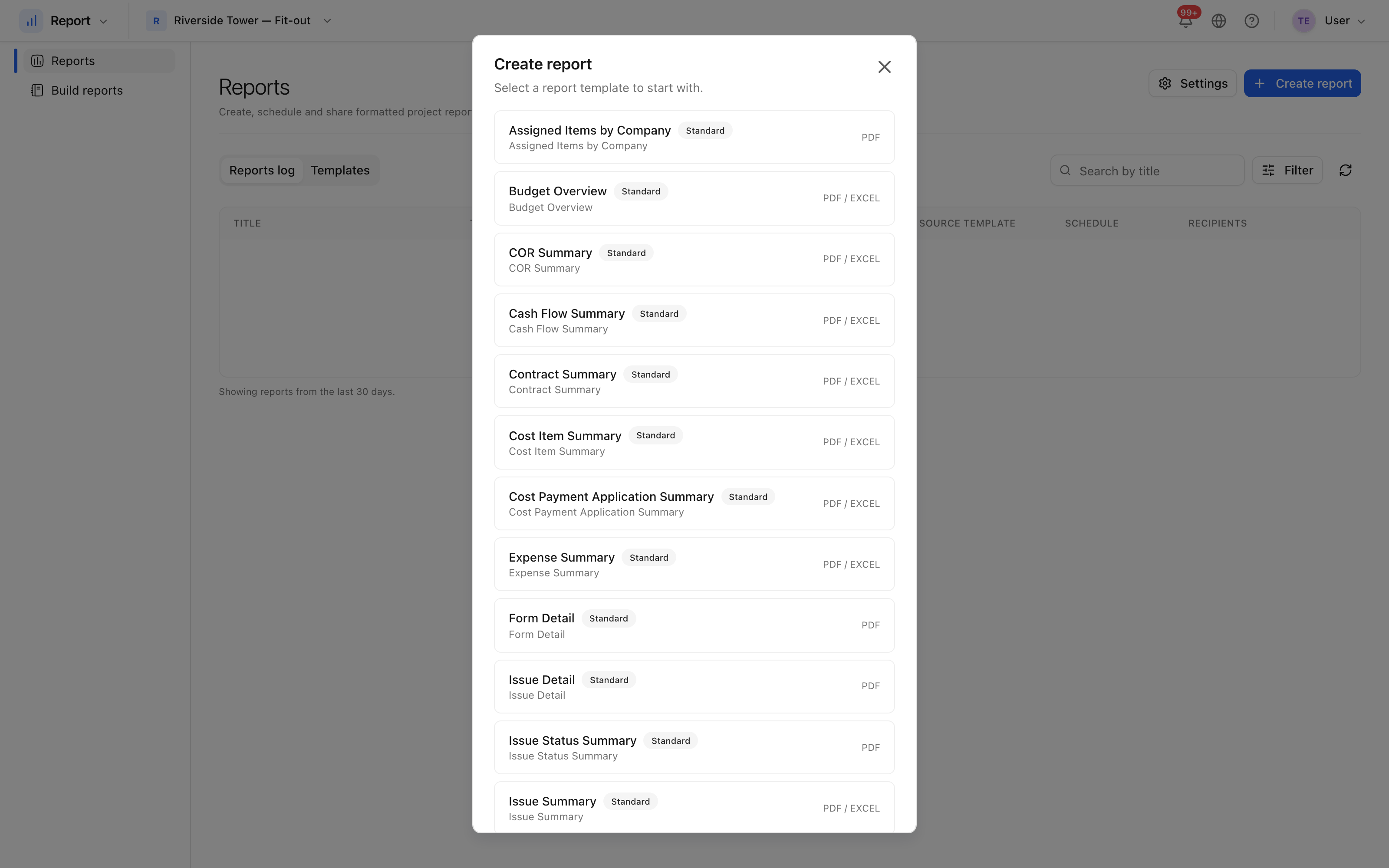 What the report covers, how it is filtered, and what comes out.
Filters
The filters are the report. An issues report with no filters is the whole register and nobody reads it; the same report filtered to open, high-priority issues on Level 02 is a page somebody acts on.
Date presets — this week, this month — are worth using over typed dates for anything that will be run again, because the preset moves with time.
Language
A report can be produced in any of the languages the product publishes in, independently of the language you are reading the interface in. That is what lets an English-speaking project team issue an Arabic report to the client.
Save it as a template
Run and save keeps the settings as a template, so the same report can be produced next week without setting it up again. Templates are also what a schedule runs.
 Reports that have been produced, with when and by whom.