
The programme is produced in planning software and imported here as a version. Importing again does not overwrite what was there — it creates a new version, so "what changed since the last issue" stays answerable.
This topic includes:
Import a schedule
- Open Schedule and click Import.
- Choose the file — CSV, or Microsoft Project XML.
- Name the version after the issue it is: "Rev 4 — August progress".
- Set the data date — the date the programme was progressed to. This is not the date you are importing it, and variance is measured against it.
- Save. The import reports how many activities it read.
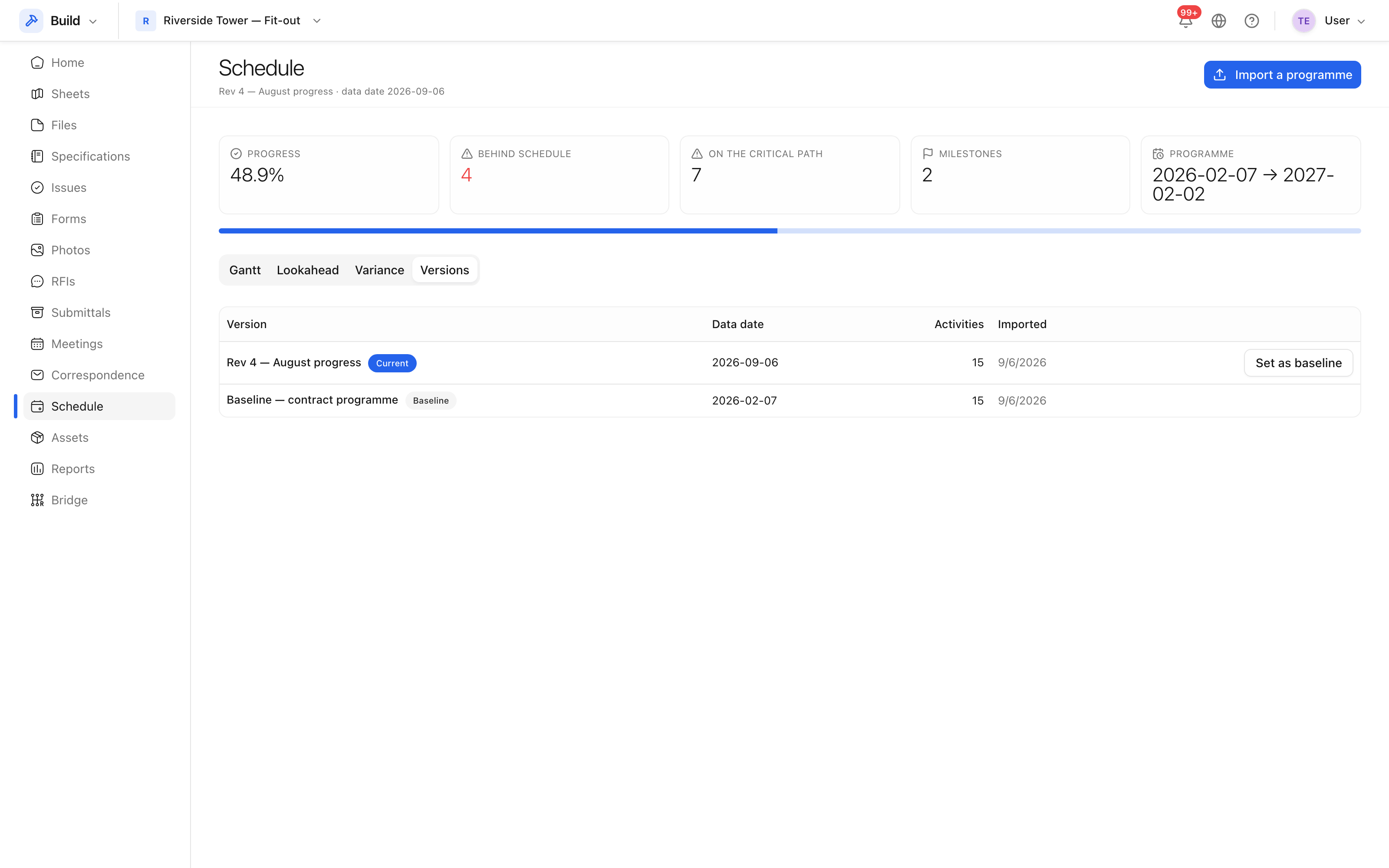 Every version imported, with its data date, and which one is current.
Versions, current and baseline
| Marker | Means |
|---|---|
| Current | The version the Gantt and the look-ahead are drawn from |
| Baseline | The version everything else is compared against |
Exactly one version is current. Any version can be made the baseline — normally the contract programme, set once and left alone. See Compare against the baseline.
What is read from the file
Activity id, name, the WBS structure, start and finish dates, duration, percent complete, total float, and the milestone and summary flags. Activities keep their ids across imports, which is how one revision is matched against another.
Anything the file does not carry is simply absent — the import does not invent dates. If float or percent complete look empty, check that the export from the planning tool included those columns.