
Every tool in SIDABuild is laid out the same way, so learning one teaches you the rest.
This topic includes:
The top bar
- The module switcher at the far left names the module you are in. Click it to move to Report, Cost Management, Insight or the admin sections.
- The project selector sits beside it. Switching projects keeps you on the same tool, so moving from one job's Issues to another's takes one click.
- The bell carries unread notifications. Click it for the recent feed, mark one or all as read, and click any row to open the thing it is about.
- The question mark opens this help centre.
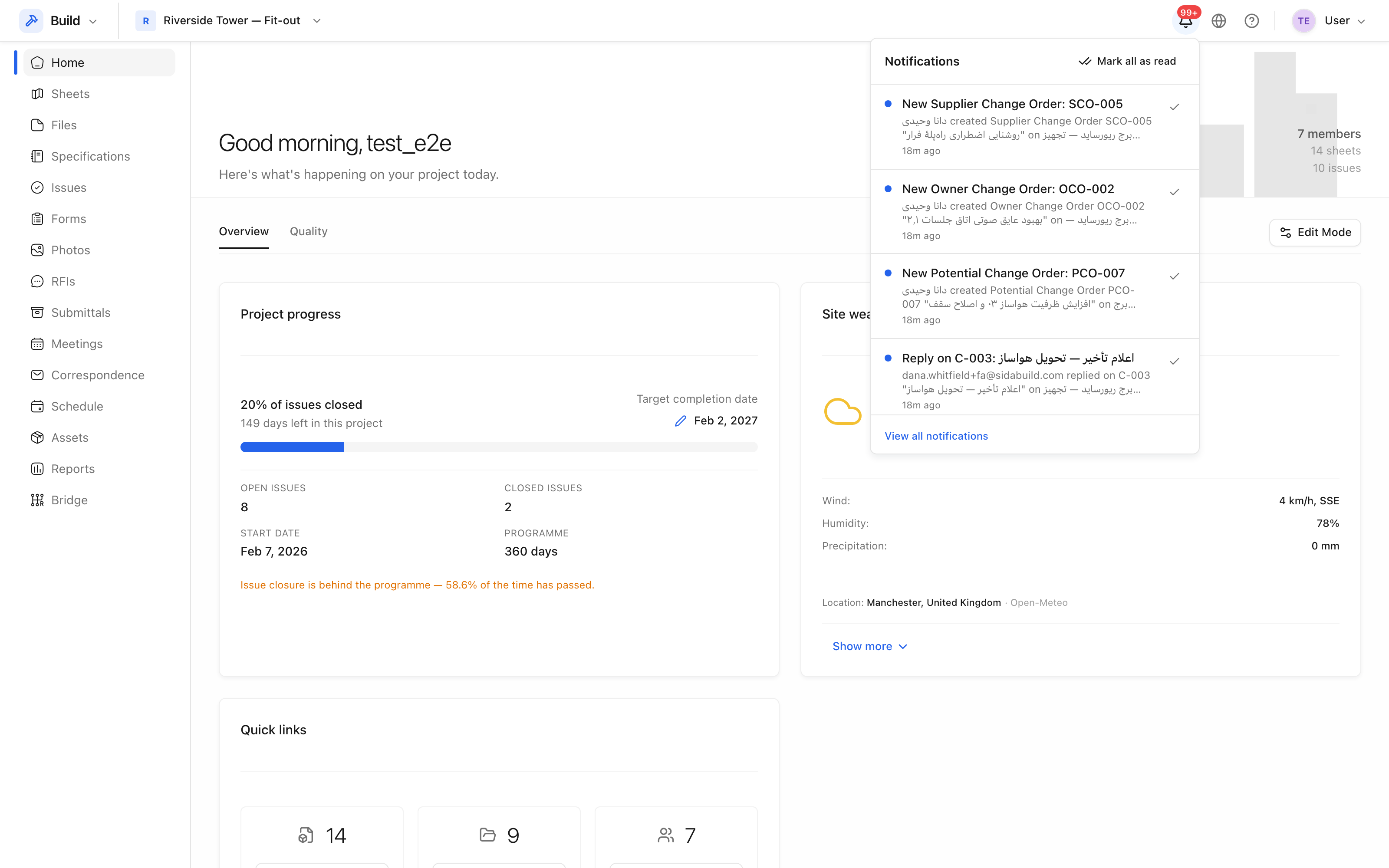 The bell shows what has happened while you were away. Each row links to the
record it refers to.
The bell shows what has happened while you were away. Each row links to the
record it refers to.
A tool page
A tool page has the same four parts everywhere:
- The title, with tool-level links beside it — usually Settings and a deleted-items view.
- The primary action on the left, always a button beginning with +: + Add sheets, + Create issue, + Create RFI.
- Search, filter and export on the right.
- The list, with a row per record and a count at the foot.
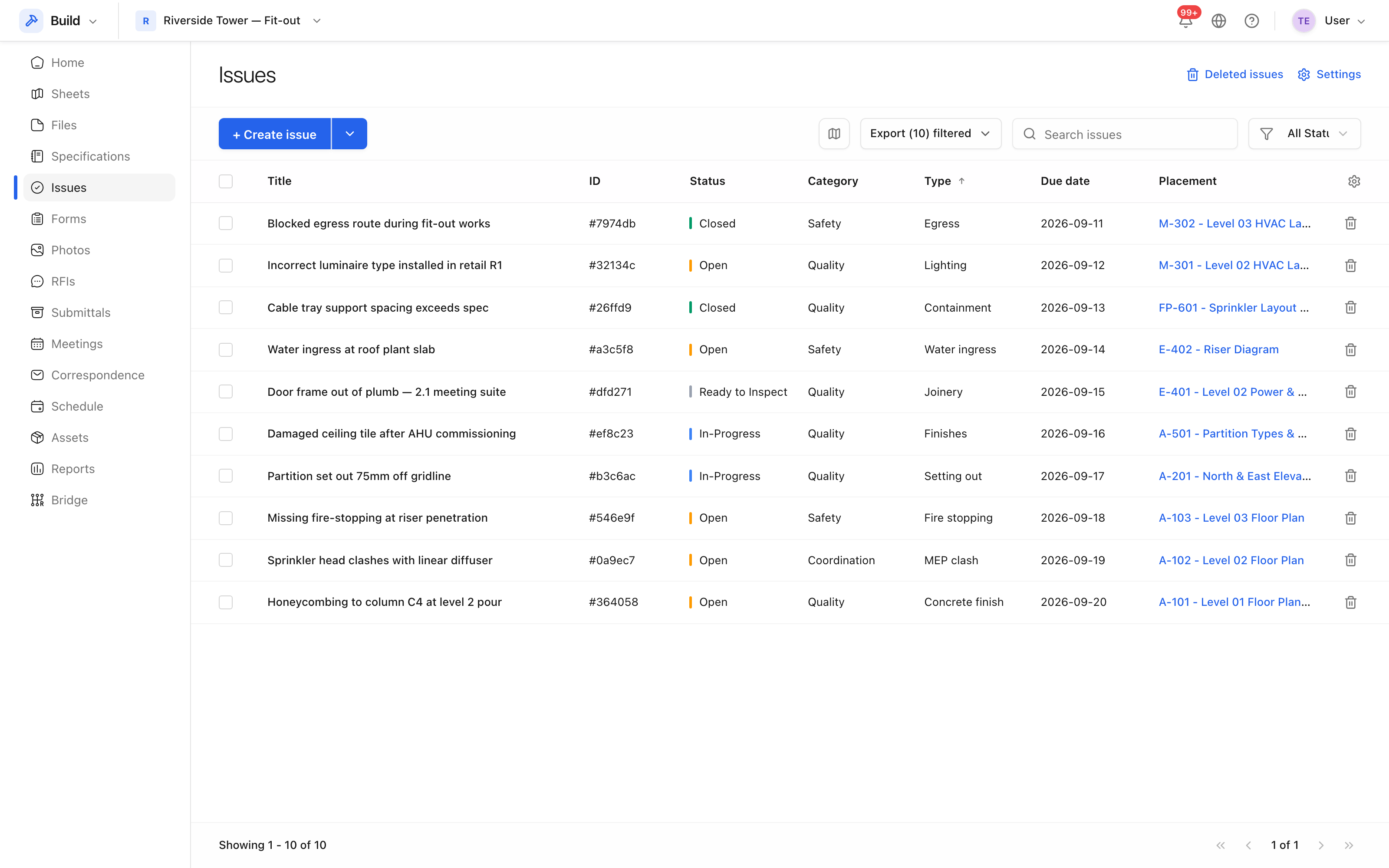 Issues. The pattern — title, primary action, search and filter, list — repeats
across every tool.
Issues. The pattern — title, primary action, search and filter, list — repeats
across every tool.
Searching and filtering
Search matches the fields you would expect of the tool: a sheet by number or title, an issue by title, an asset by name, ID, barcode or serial number. Filters sit next to the search box and stack, so All Statuses and a category can narrow a list together. The export button always exports what you are looking at, not the whole tool — the count in the button says how many rows that is.
Tip: deleting is reversible in most tools. Look for Deleted sheets, Deleted issues or the recycle bin beside the tool title before assuming something is gone.