
Every register in SIDABuild — issues, RFIs, assets, budget lines — works the same way: a search box narrows by text, the filters narrow by field, and what is left can be exported.
This topic includes:
- Search within a tool
- Filter a list
- Clear filters when a list looks empty
- Export what you are looking at
Search within a tool
Search is per tool rather than global: the box above the Issues list searches
issues, the one above Assets searches the asset register. It matches on the
title and the identifier, so typing AHU finds both the asset tagged AHU-03
and an issue whose title mentions it.
Filter a list
Filters sit alongside the search box and vary by tool — status, assignee, type, location, discipline. They combine: choosing Open and Level 02 shows open issues on Level 02 and nothing else.
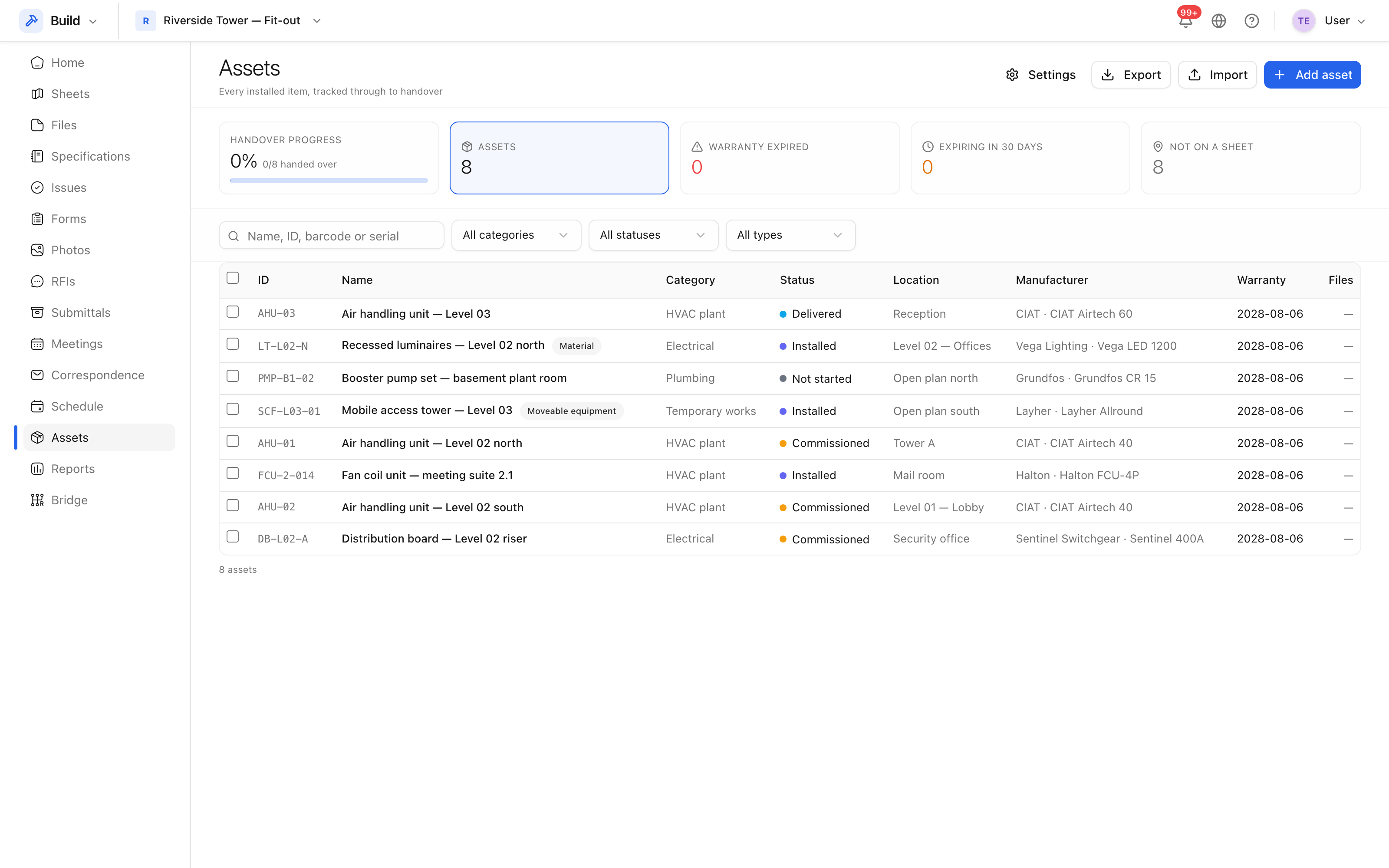 Search, filters and export sit above every register.
Clear filters when a list looks empty
A filter left on from last week is the usual reason a list looks empty. Use Clear filters to reset the tool to everything. Filters are remembered as you move around the product, which is convenient until it is confusing.
Export what you are looking at
Where a tool offers Export, it exports the rows you are looking at — the filtered set, not the whole register. Filter first, then export, and the spreadsheet contains exactly what was on screen.
For a formatted document rather than a spreadsheet, use Reports, which lays the same content out for issuing.