
Two controls decide what you are looking at: the project selector, which sets which job, and the product picker, which sets which tool. Almost every "I cannot find it" turns out to be one of these pointing somewhere else.
This topic includes:
Change project
The project name sits at the top left of every screen. Click it for your recent projects, and View all projects for the full list.
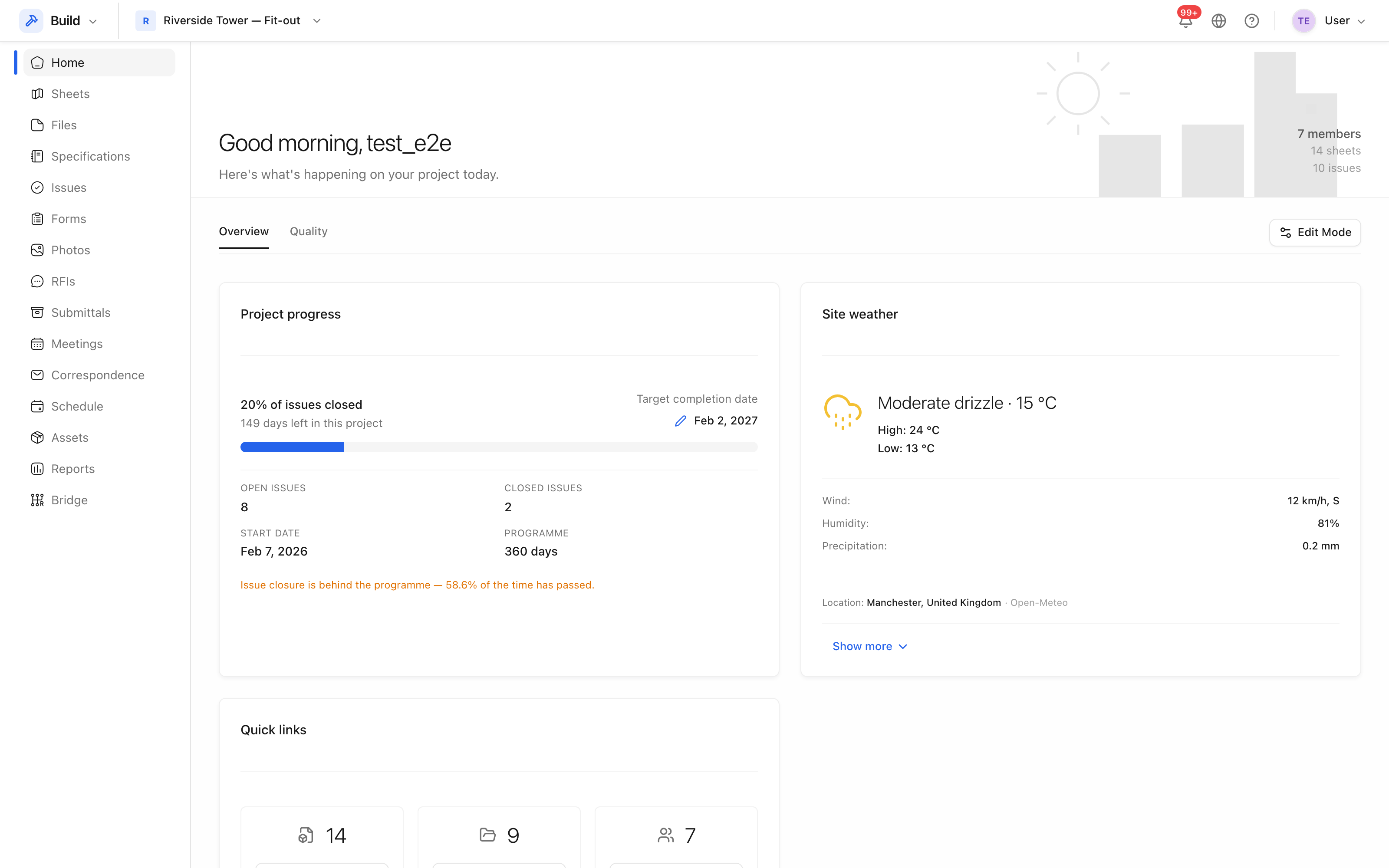 The project name, top left, is also the switch between projects.
The selection is remembered on your device, so the next time you sign in you land on the job you were last working on.
Change tool
The tools — Sheets, Issues, RFIs, Submittals and the rest — are listed down the left. The top-level products (Build, Cost, Insight, Report) are reached from the product picker beside the project name. Changing product keeps you on the same project.
What stays with the project
Everything is scoped to one project: an issue raised on Riverside Tower is never visible from another job, and neither are its drawings, photos or costs. Two things are not project-scoped:
- Your profile and language — set once, they follow you everywhere.
- Roles — defined for the workspace, then handed out per project.
Tip: if a list looks empty when you expected rows, check the project name at the top left before anything else.