
Sheets are added through a four-step wizard that reads each drawing's title block, proposes a number and title, and lets you correct them before anything is published.
This topic includes:
Publish a set of drawings
-
Open Sheets and click + Add sheets.
-
Drag your drawings onto the drop zone, or click to browse. The wizard reports how many files are staged.
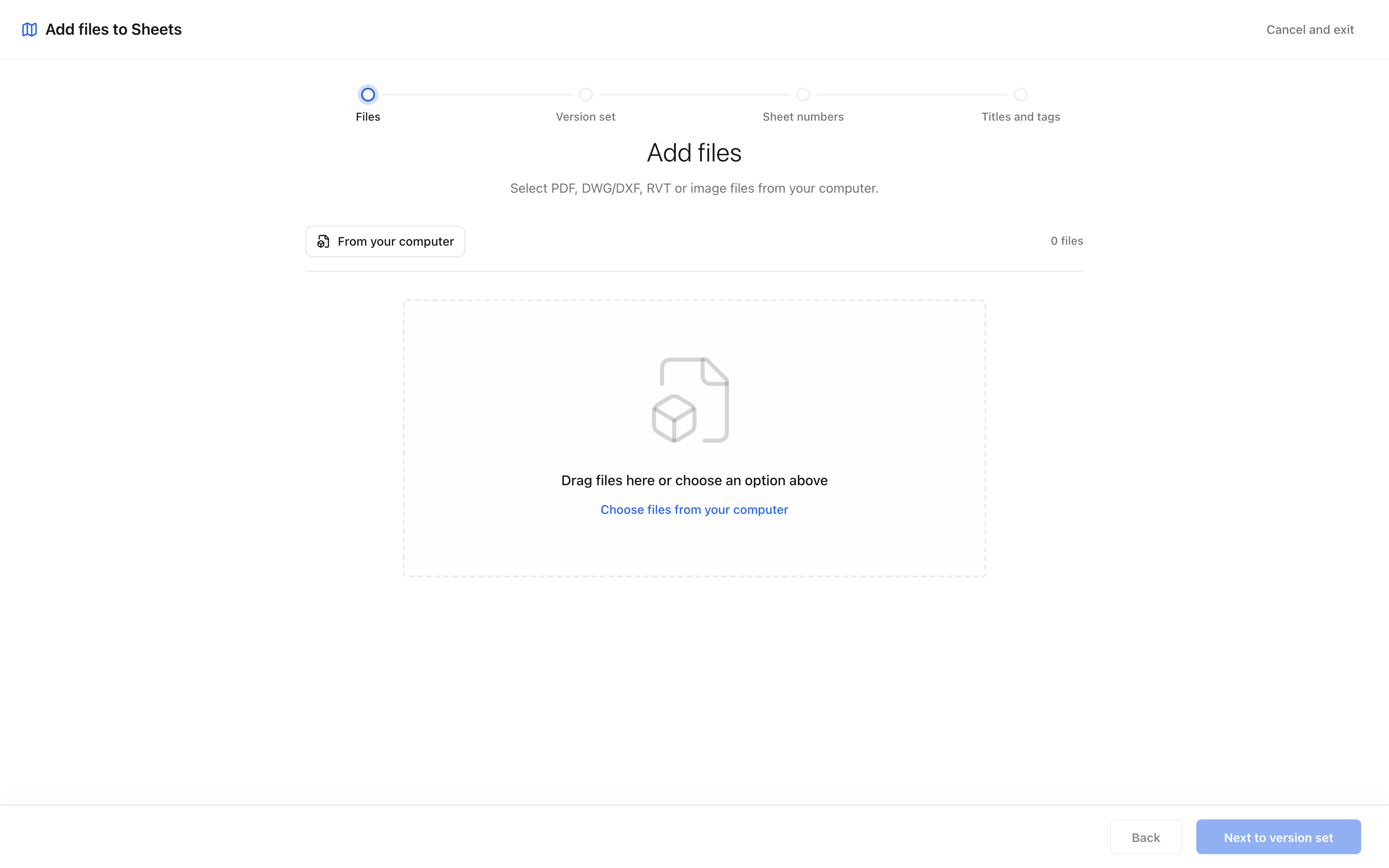 Step 1. Files are staged, not published — nothing reaches the register until
the last step.
Step 1. Files are staged, not published — nothing reaches the register until
the last step. -
Click Next to version set. Give the bundle a name under Type name and set the issuance date.
-
Click Next to sheet numbers. The wizard shows the number it read from each title block. Correct any it misread.
-
Click Next to titles and tags. Review the titles, and set the discipline and tags for the set.
-
Click Publish sheets. You are returned to the register with the new sheets in place.
Tip: a sheet the wizard could not read is flagged rather than dropped. Give it a number by hand at step 4 and it publishes with the rest.
When a file is turned away
If a file is not a drawing — a spreadsheet dropped in by mistake — the wizard names it and says why, and stages the rest. One bad file does not cost you the good ones: the drawings that were readable still publish.
Supported formats
pdf, dxf, dwg, rvt, png, jpg, jpeg. A multi-page PDF is split into
one sheet per page.