
This topic includes:
Raise an issue
- Open Issues and click + Create issue.
- Give it a Title. This is what everyone will search for, so name the problem rather than the location: "Honeycombing to column C4", not "Level 2 defect".
- Fill in what you know and click Create.
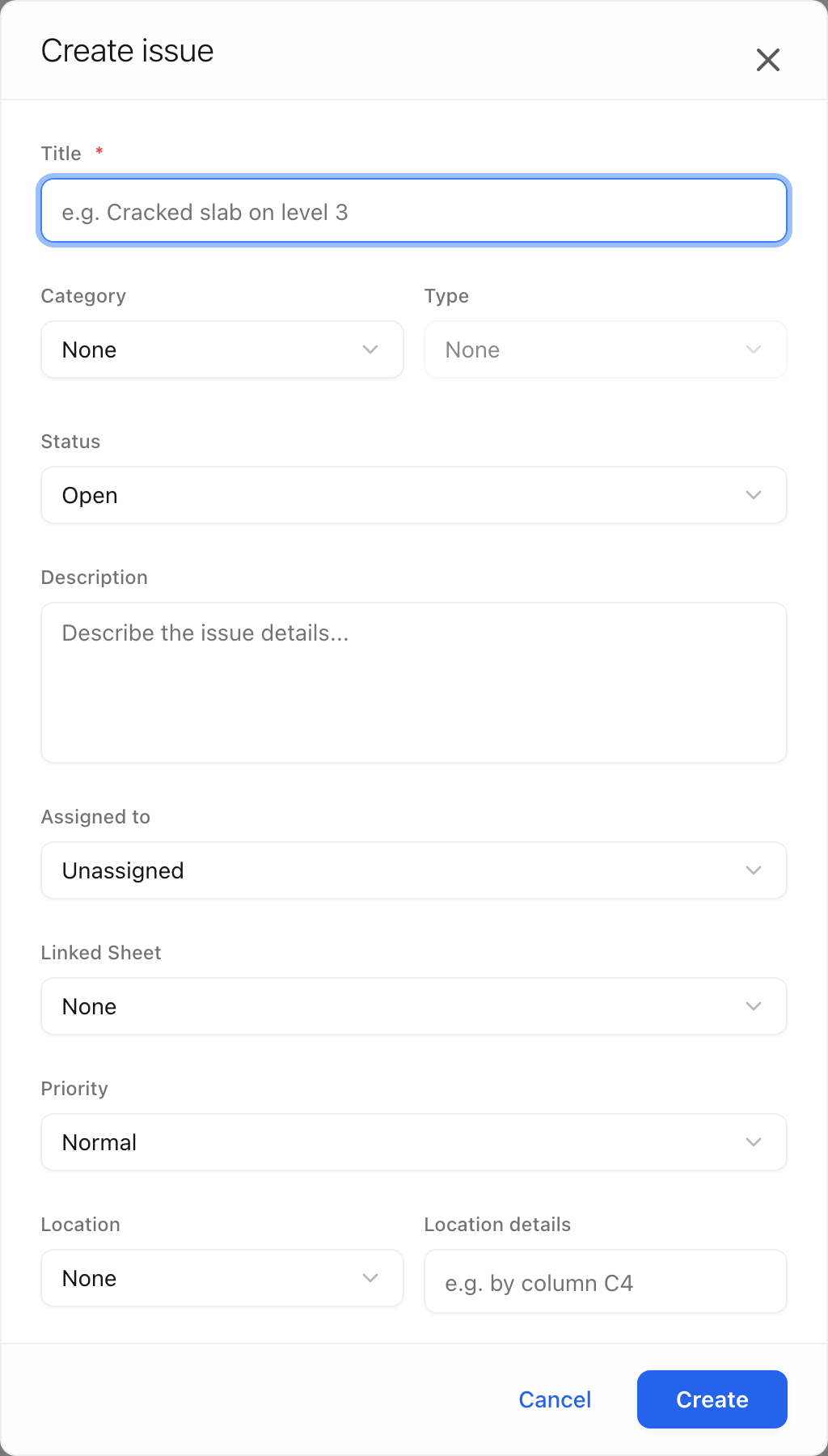 Only the title is required. Everything else can be added later, from the
issue's own page.
Only the title is required. Everything else can be added later, from the
issue's own page.
The fields
| Field | What it is for |
|---|---|
| Title | Required. The problem, in a line. |
| Category and Type | The project's taxonomy. A type only means something inside its category, so pick the category first. |
| Status | Defaults to Open. |
| Description | The detail: what you saw, and what you expect. |
| Assigned to | The person being asked to fix it. They become a watcher automatically. |
| Linked Sheet | The drawing it concerns. |
| Priority | Low, Normal, High or Critical. |
| Location | A node of the location breakdown structure. The picker shows the full path, so Level 02 is unambiguous across three buildings. |
| Location details | The part of the place that is not worth its own node — "by column C4", "under the north stair". |
| Start date and Due date | When work begins and when it is needed. A start date after the due date is refused. |
| Root cause | Why it happened, from the project's list. |
| Watchers | People who follow the issue without owning it. |
Note: attachments are added on the issue's own page, not while creating it. Create the issue, open it, then use Add Attachment.
Raise an issue on a drawing
If the issue is somewhere specific on a sheet, raise it from the sheet: the pin records the exact point and the issue records which sheet and version it came from. See Markups and pins.